Tenant Member
In SSO.ID v2, Tenant Members represent users who have explicit administrative or operational access to manage the tenant itself. Manage tenant members in the Angular Console at https://app.sso.id/admin/tenant-members or via Core APIs (https://api.sso.id/api/tenantmembers).
Add Members
We can add members in two ways.
- Add Existing
- Add New
Add Existing
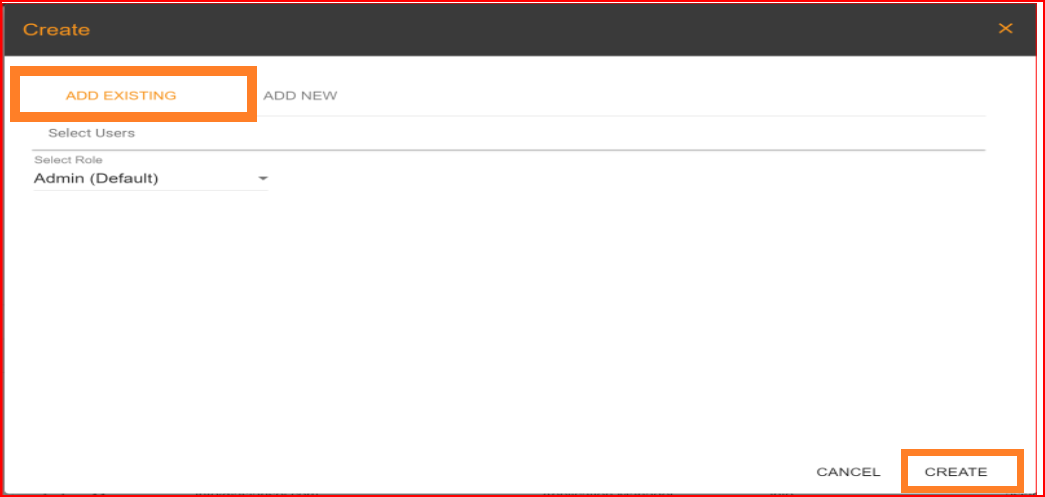
Add users from your directory (User Management) into tenant administrative roles. Search for the user, select their Tenant Role (e.g. Tenant Admin, Developer, Viewer), and save.
Add New
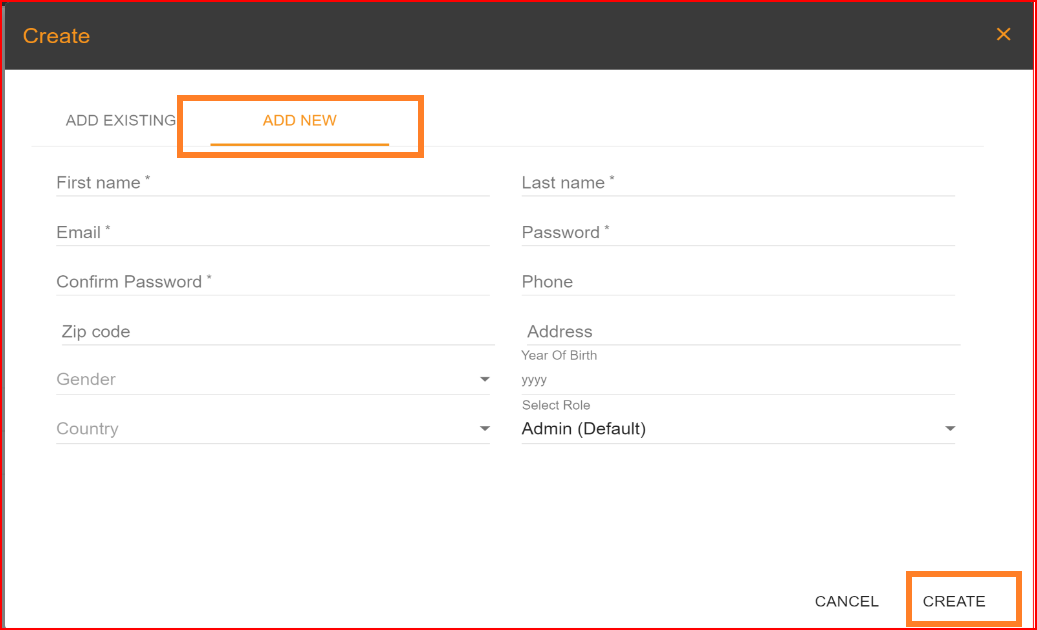
If a user doesn't exist in the "Add Existing" section, you can create a new user in the "Add New" tab. When you select this option, a create form will open, and it will contain several fields that need to be filled out carefully. You should provide your email address, password, phone number, gender, country, and, most importantly, specify the role. The role you select from the available list will be displayed in your profile settings, and your access within the tenant will be determined based on this role. Additionally, these new members are also included in the user management section. They can log into the system using the email and password that you set in the "Add New User" form to become a new tenant member.
Handling tenant members
Search
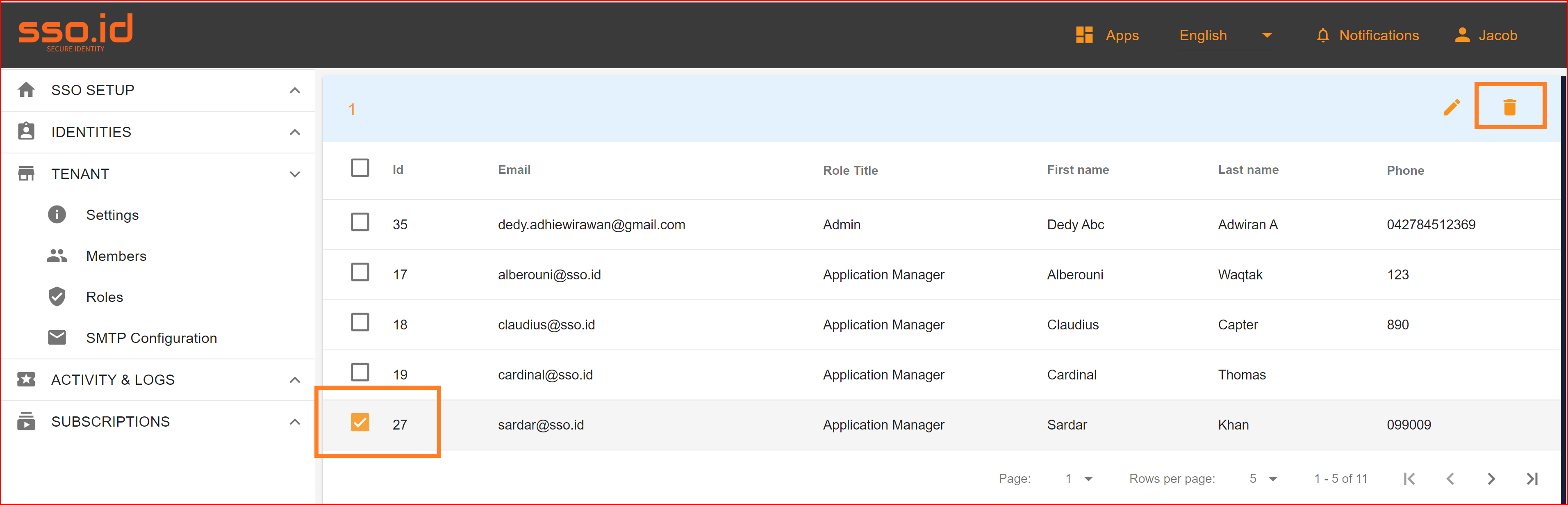
The search bar feature is present in nearly every section, including the tenant member section. Its primary purpose is to create a user-friendly interface for clients, making it easy to search for specific records using various criteria. You can search for records by email, first name, last name, and role title.

Update
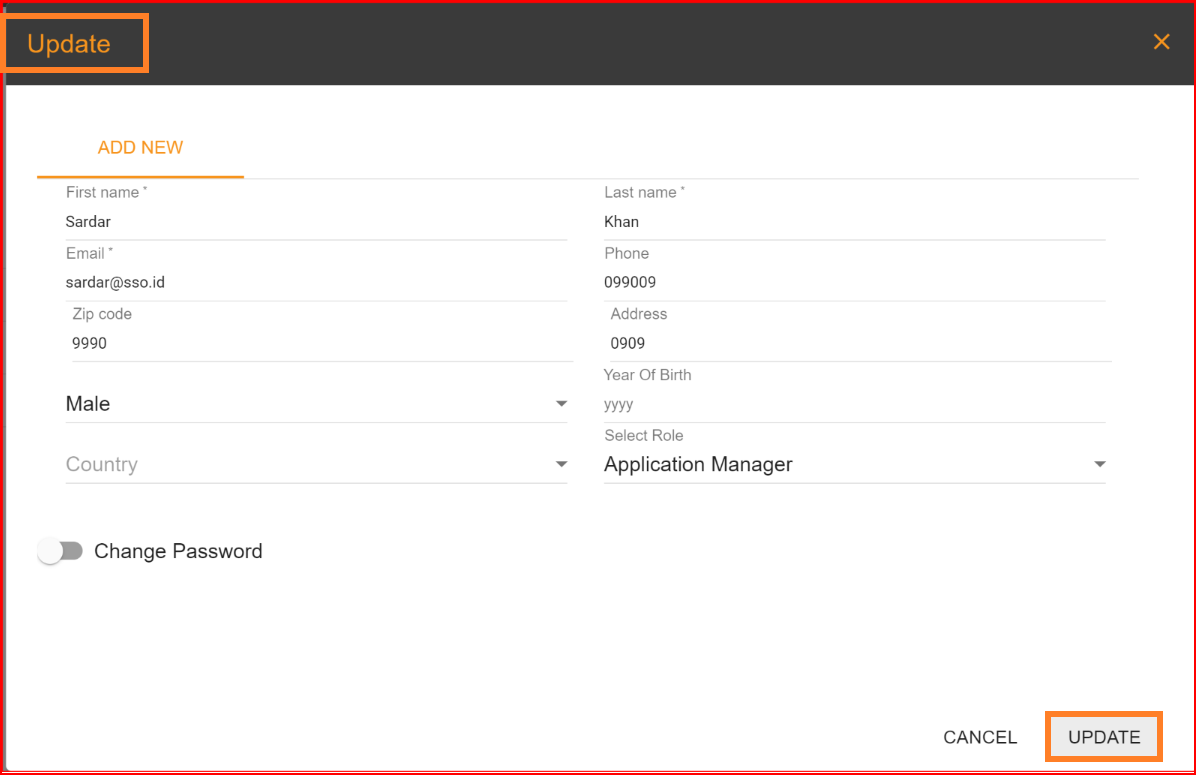
SSO.ID offers the capability to update information for any tenant member, which can be performed by administrators. In addition, each member has the option to update their first name, last name, gender, and role. However, it's important to note that for email updates, the system will check if the email already exists in the system. If it does, an error message will be generated, indicating that the "email already exists".
Delete
The delete option is available in nearly every section, and its purpose is to remove any unnecessary or redundant entities from the system. When an entry is deleted, it is permanently removed from the system, so it's important to exercise caution when using this feature. Deleting an entry is a straightforward process. Simply select the record you wish to delete, click on the delete button, and the record will be successfully removed from the SSO.ID system.