Introduction
In SSO.ID v2, the "Account" subsystem handles user identity lifecycle, multi-account switching, authentication sessions, and security preferences across all microservices (angular.sso.id, auth.sso.id, and api.sso.id).
Create Account
To create a new SSO.ID account, users navigate to the developer registration portal at https://app.sso.id/register (or your dedicated tenant URL: https://{your-tenant}.sso.id/auth/Account/Login?prompt=create).
During sign-up, users can register with their email and password or use Social Connections (Google, Microsoft, Facebook, Apple, LinkedIn, GitHub). In SSO.ID v2, email verification OTP codes are automatically dispatched via the configured SMTP service to validate ownership before tenant creation.
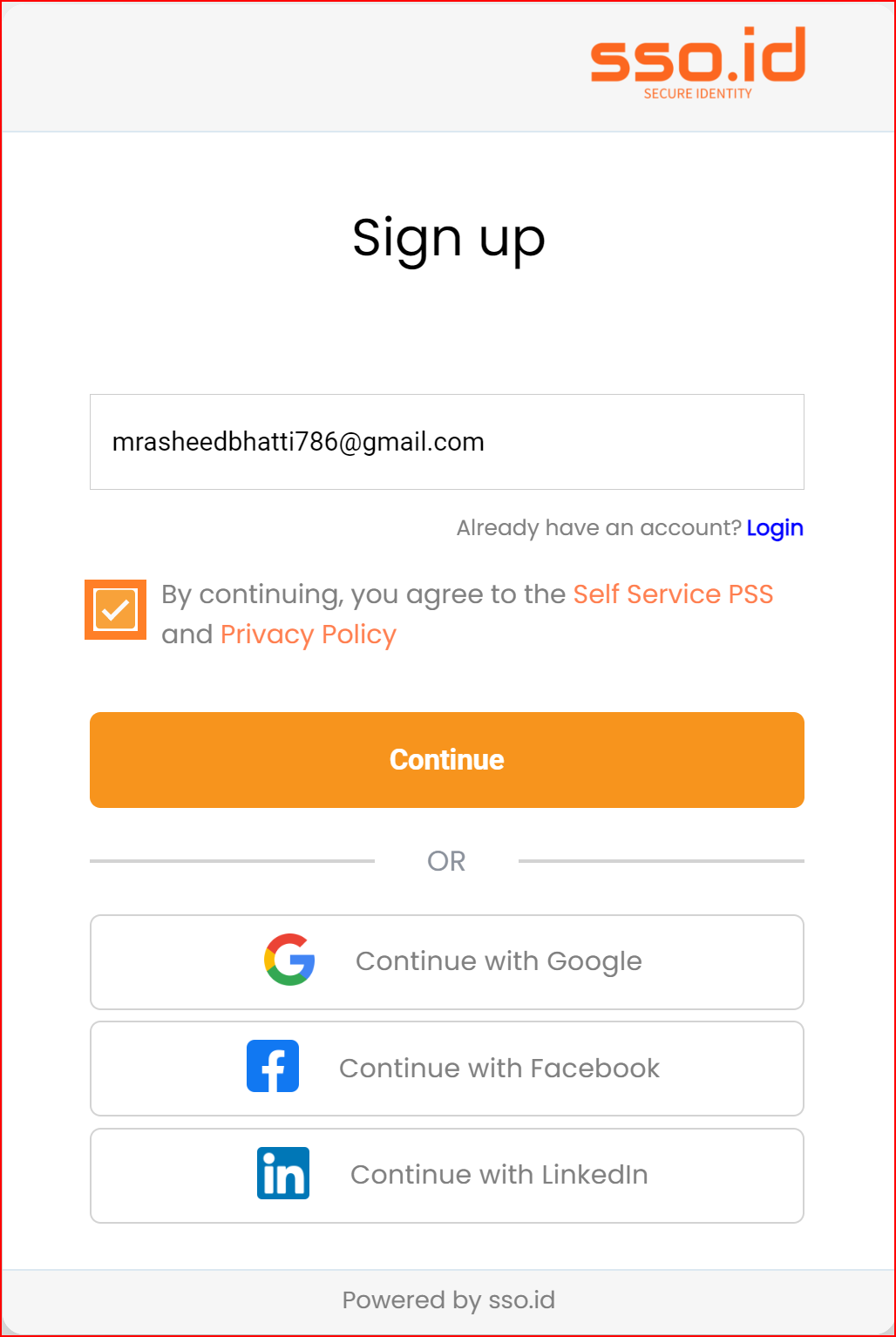
The verification code will be sent to the email address you provided. Copy the code from your email and paste it into the verification input field. Then, set your password, confirm the password, and finally, click on "Create Account." Your account has been successfully registered on SSO.ID. If you encounter any issues or have any questions, you can reach out to the SSO.ID team. They will assist you according to your needs.
Login
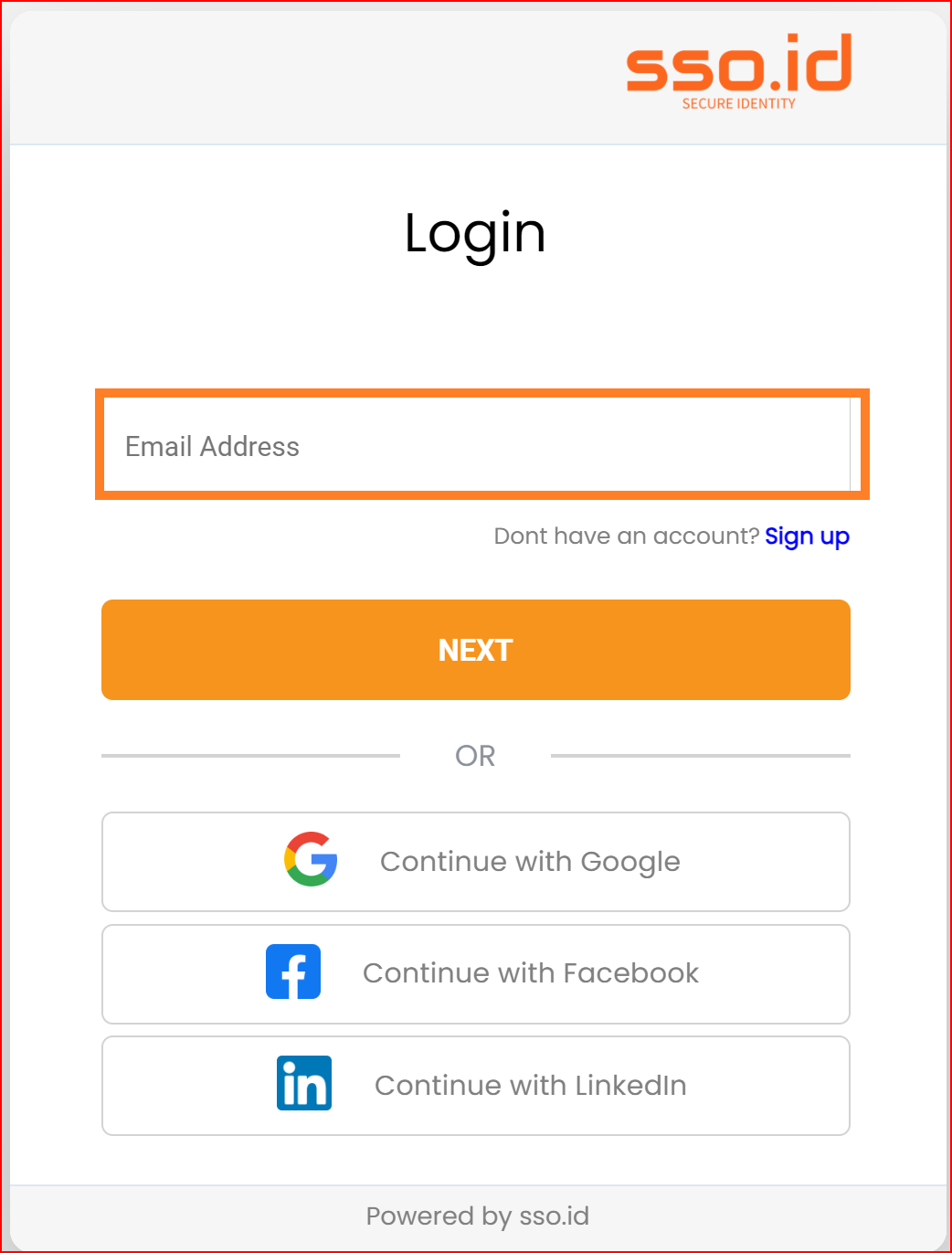
Interactive login in v2 is securely hosted on Auth.SSO.Id at https://auth.sso.id/auth/Account/Login (or tenant domain https://{tenant}.sso.id/auth/Account/Login).
Users can authenticate via Password, Social SSO, Enterprise SAML 2.0, or MFA OTP (TOTP Authenticator app / Email OTP).
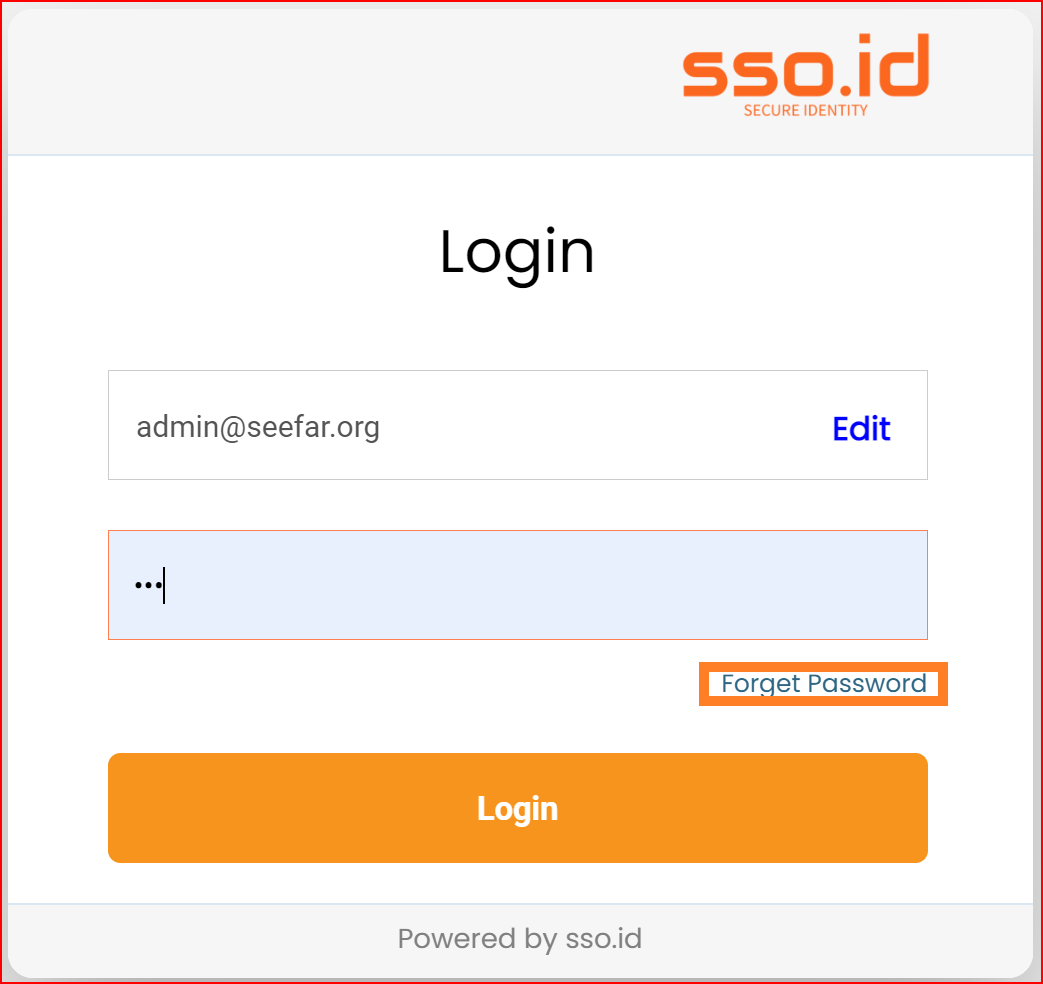
Forget Password
Users can request a password reset from the login screen or directly via https://auth.sso.id/auth/Account/ForgotPassword. SSO.ID generates a cryptographically signed reset token and dispatches a verification link with customizable expiration.
Profile Management
Profile management in Single Sign-On Identity (SSO.ID) systems refers to the process through which users can view and modify their personal information and preferences within the SSO.ID ecosystem. Here are key aspects typically included in profile management. To manage your profile, click the "login" button at the top right corner to access your dashboard.
You can click the "Profile Settings" button to manage and update your profile information. This tab will open a dialogue with your basic information where you can make changes as needed.
View/Edit Profile Information
Users should be able to access and update their profile details such as name, email address, contact information, and profile picture. This ensures that their information is current and accurate.
History and Activity Logs
To review your history and activity logs, click the "login" button located at the top right corner, then select the "Activity" tab.
Providing users with access to logs of their account activity, including login history, changes to profile settings, and security-related events, enhances transparency and accountability.
Profile Completeness
SSO.ID systems may include features to encourage users to complete their profiles by providing incentives or reminders to fill in missing information.
Identify Change Password Option
In the profile settings, you can change your password by clicking on the "Change Password" toggle button.
Within the profile settings, include an option specifically labeled "Change Password" or something like make it easily identifiable to users.