SSO.ID v2 Multi-Tenant Architecture
In SSO.ID v2, multi-tenancy is a core architectural pillar. Every customer organization operates as an isolated tenant with dedicated database storage, unique subdomain routing (https://{tenant}.sso.id), custom branding, security policies, and member access controls.
- Global / Default:
https://{tenant}.sso.id - EU Data Residency:
https://{tenant}.eu.sso.id(Master:account.eu.sso.id) - US Data Residency:
https://{tenant}.us.sso.id(Master:account.us.sso.id)
Manage your tenant settings in the Angular Console at https://app.sso.id/admin/settings.
Tenant Customization & Domain Binding
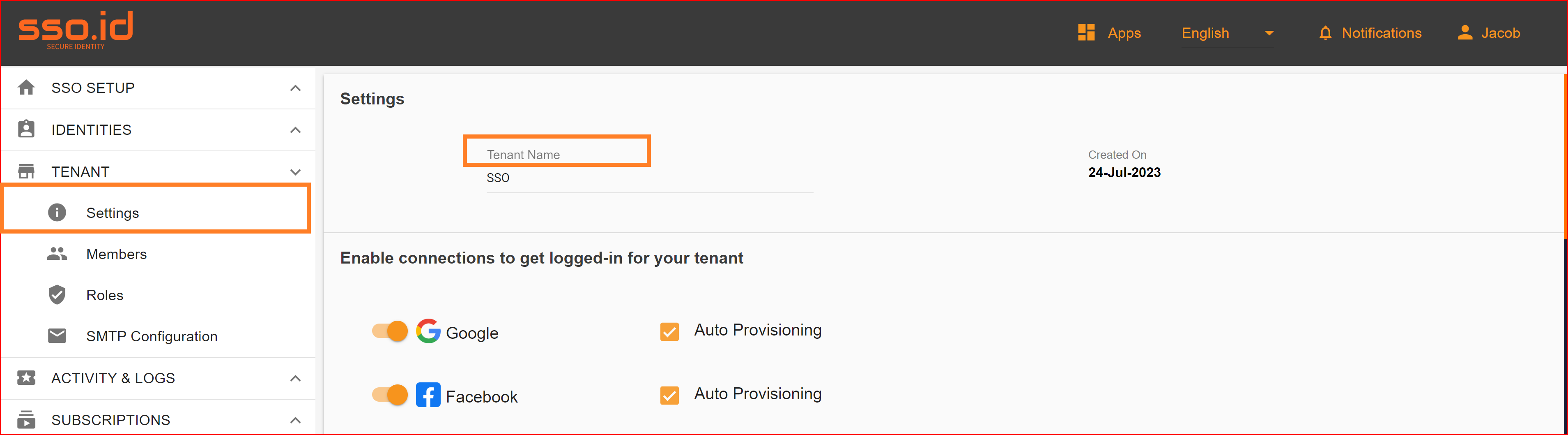
Configure your tenant display name, custom subdomain, support email, and terms of service. Tenant resolution is handled automatically by reverse proxy and host header evaluation via TenantResolutionMiddleware.
Tenant Authentication & Connection Providers
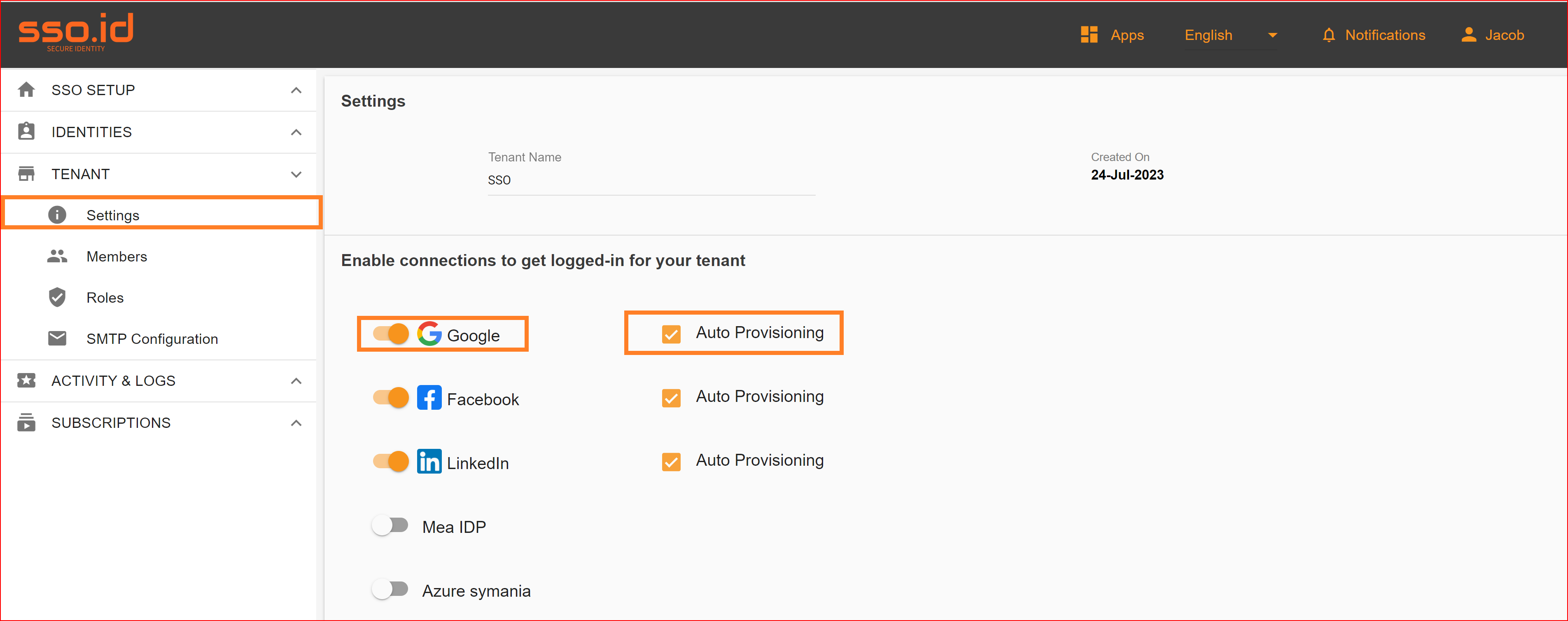
Enable social and enterprise login providers at the tenant level to make them available across all applications within your organization:
- Mea IDP
- Azure Symania
For each connection, there are toggle buttons available. You should toggle the buttons for the connections you want to enable for logging in to your tenant. You can enable one or more connections. The connections you enable will be displayed on your tenant's login page. Now, you can log in to your tenant using these connections you've enabled, and they will function correctly. If you wish to log in to your tenant, simply click on the enabled connections, and you will be successfully logged in to your tenant. When auto-provisioning is turned on, the SSO.ID system automatically creates user accounts in the target application if the user's account doesn't already exist.
Support
There are following suportice contexts
- Support email
- Support url

Support email
A support email in the context of an SSO.ID system typically refers to an email address designated for users or administrators to contact for assistance or support related to the SSO.ID system. This email address is provided as a point of contact for resolving issues, answering questions, or seeking help with various aspects of the SSO.ID implementation.
Support url
A support URL in the context of SSO.ID system typically refers to a web address or URL that users and administrators can visit to access resources, information, or assistance related to SSO.ID support and help. The support URL is a common means of providing users with access to documentation, FAQs, knowledge bases, and support contact information.
Enable authentication for tenants
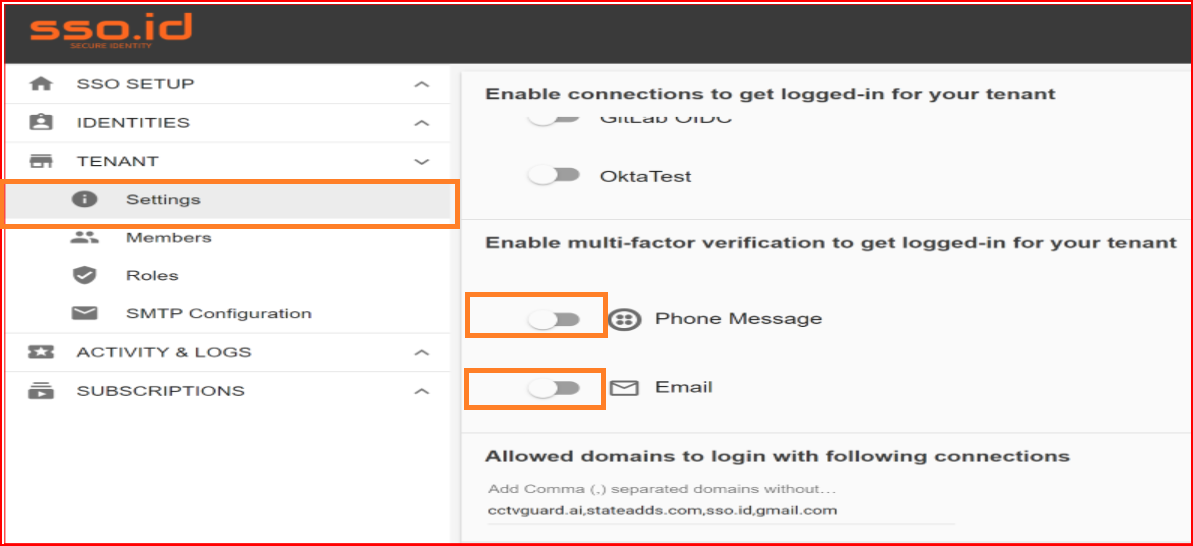
SSO.ID offers two authentication methods for both your application and your tenant. To enable multifactor authentication for your tenant, follow a simple process. Navigate to the settings section for your tenant and activate either phone message authentication or email authentication by clicking the toggle button. This action will enable multifactor authentication for your tenant.
Logo
There are following two logo contexts.
- Logo url
- Logo Base64

Logo url
The logo URL in a Single Sign-On (SSO) system typically refers to a web address (URL) that hosts or links to the logo image that represents the SSO service or the organization's branding within the SSO portal. This logo is usually displayed on the login page, user portal, or other parts of the SSO interface to provide a branded and recognizable appearance for users.
Logo Base64
Using a Base64 encoded logo in an SSO.ID system means that the logo image is stored as a Base64-encoded string directly within the SSO configuration or web page code, instead of being hosted at an external URL.

Privacy and Policy
A Privacy and Policy page in SSO.ID system is a web page or section of the SSO.ID portal that provides users with information about the privacy practices and policies of the SSO.ID service. This page is essential for transparency and compliance with data protection regulations, as it informs users about how their data is collected, used, and protected.
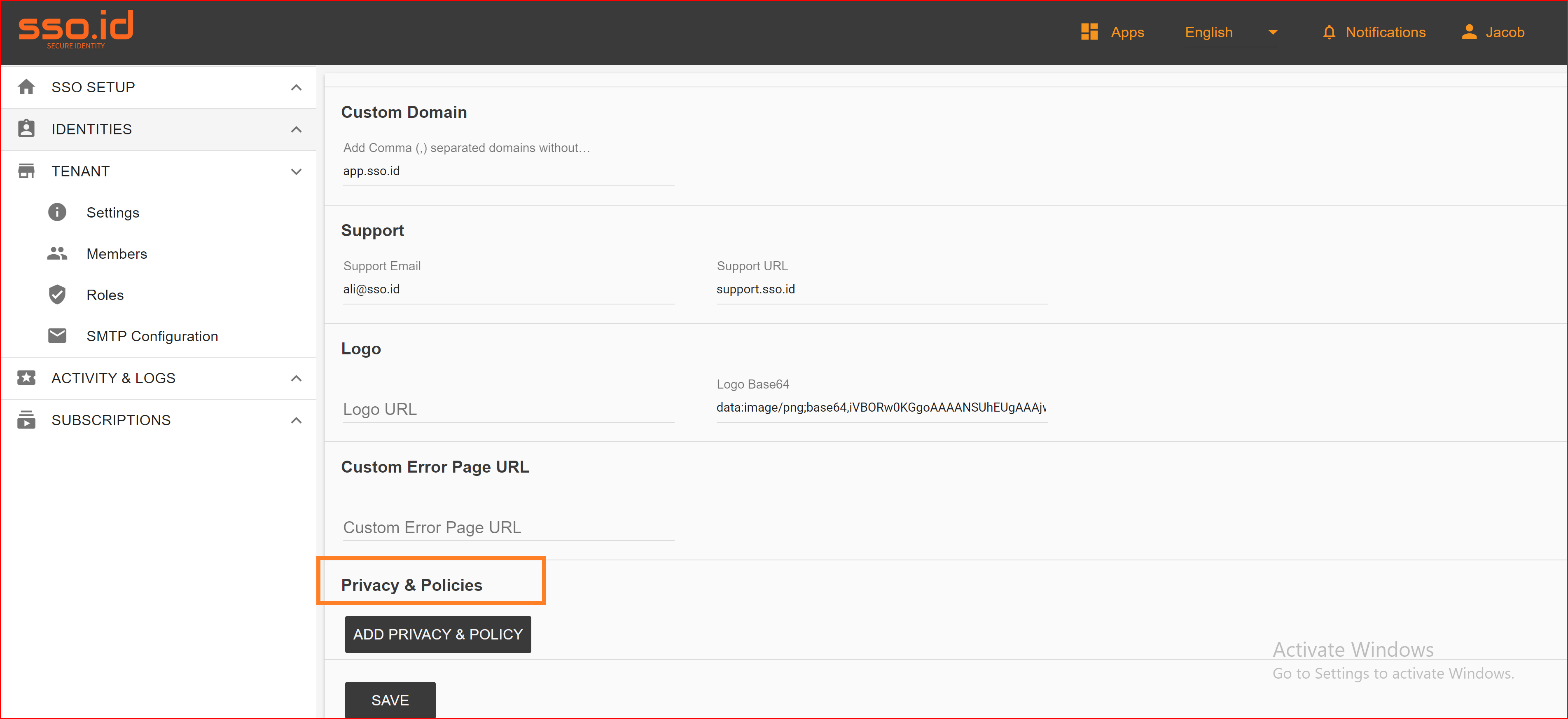
Update Privacy and Policy
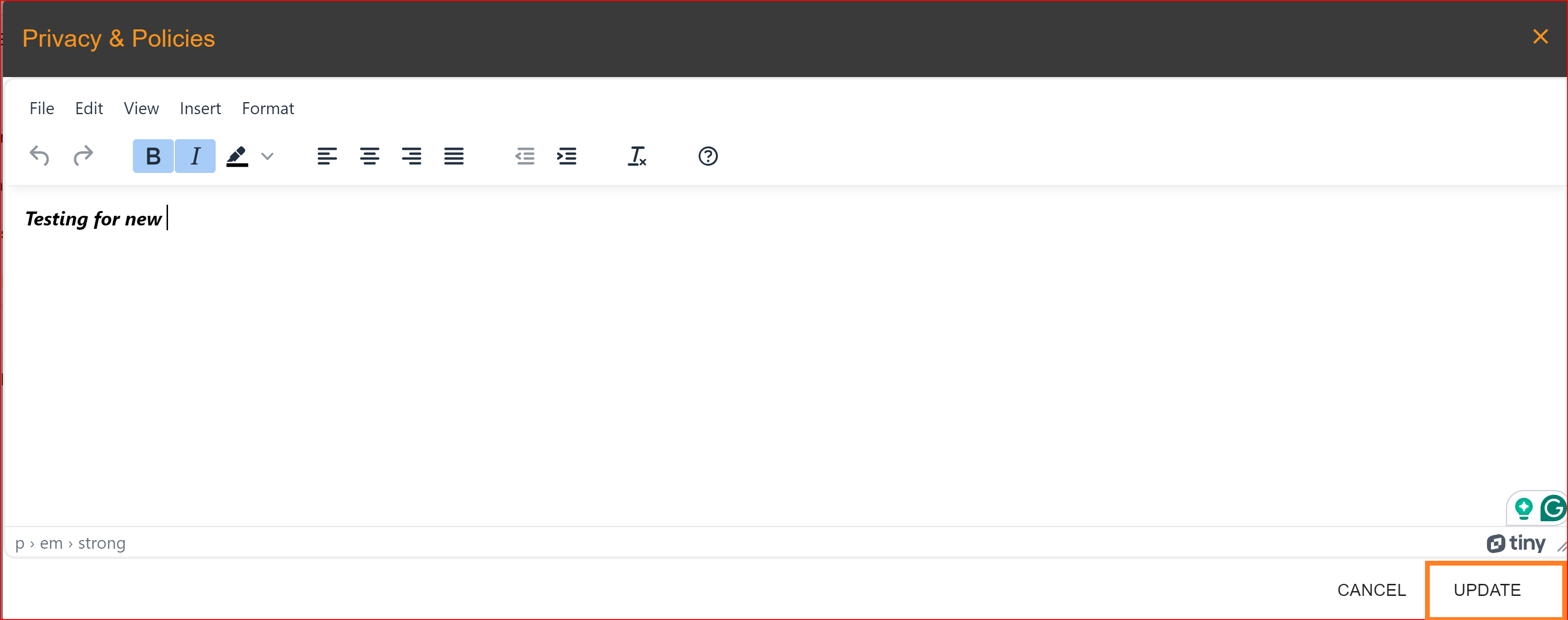
Click on the Add Privacy and Policy page.
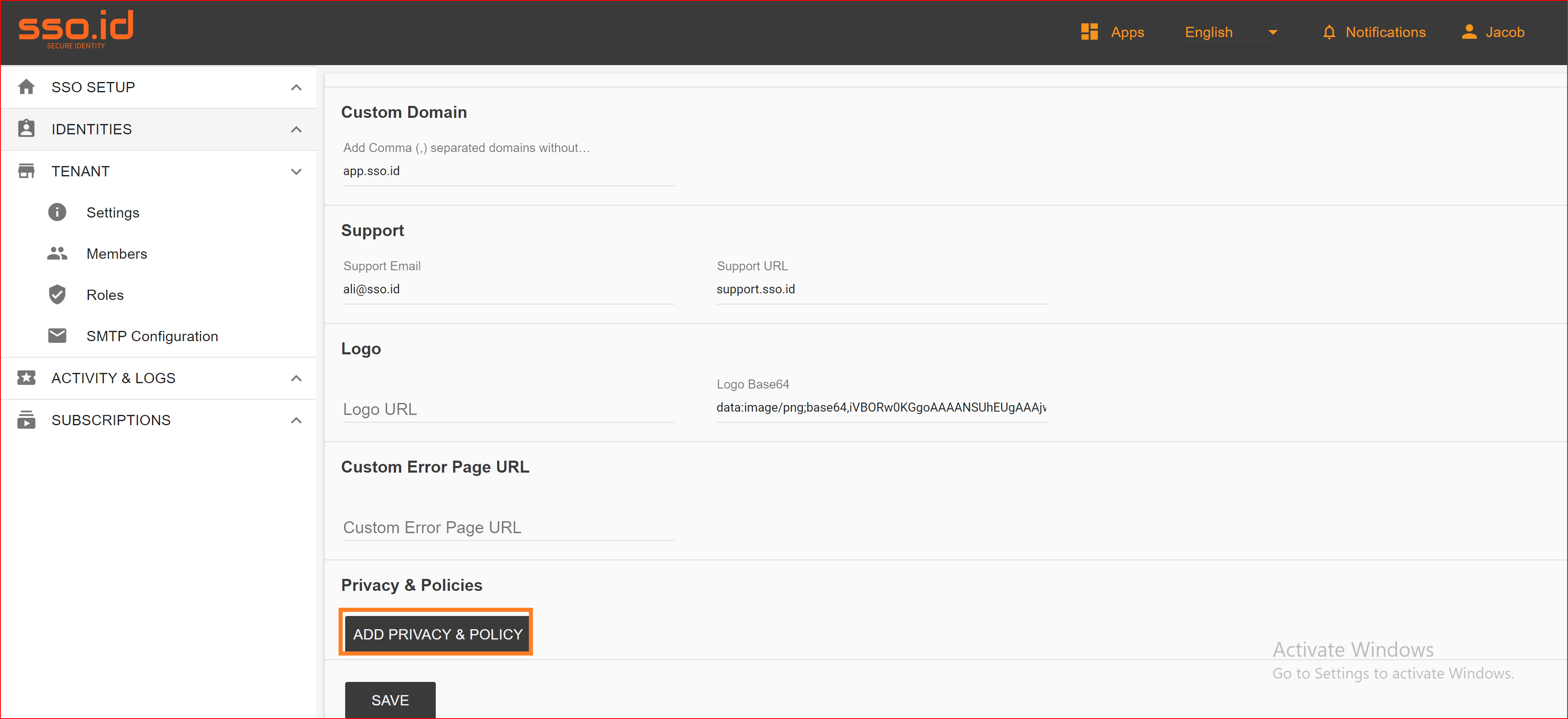
Add the privacy and policies that pertain to your tenant's SSO services. In case of updates, you can easily add new policies and remove old privacy policies from the privacy policies section. Finally, click on the "Save" button. Your updates in the tenant settings will be successfully updated.