Organization in SSO
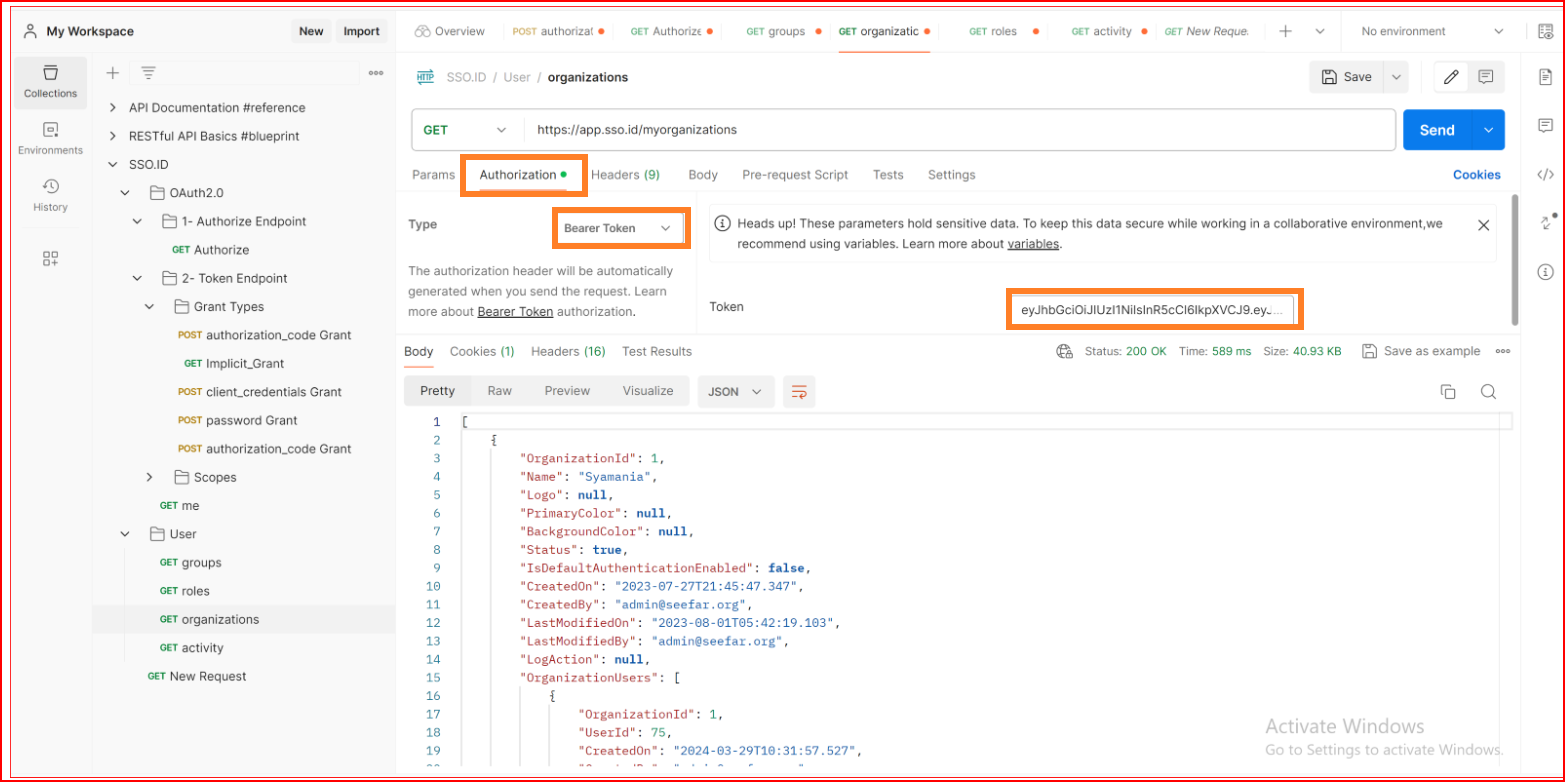
In SSO.ID v2, Organizations represent client businesses or distinct operational entities within a tenant. Manage organizations in the Angular Console at https://app.sso.id/admin/organizations or via Core REST APIs (https://api.sso.id/api/organization).
Add Organization
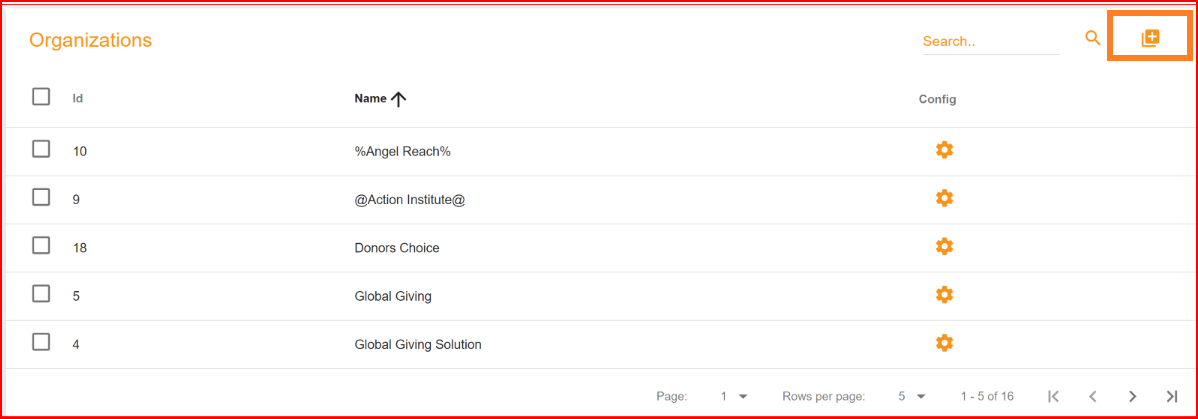
Adding an organization is a straightforward process in SSOID. In the top right corner, you'll find an Add button displayed in SSO.ID. Simply click on the button to create a new organization in the organization's list.
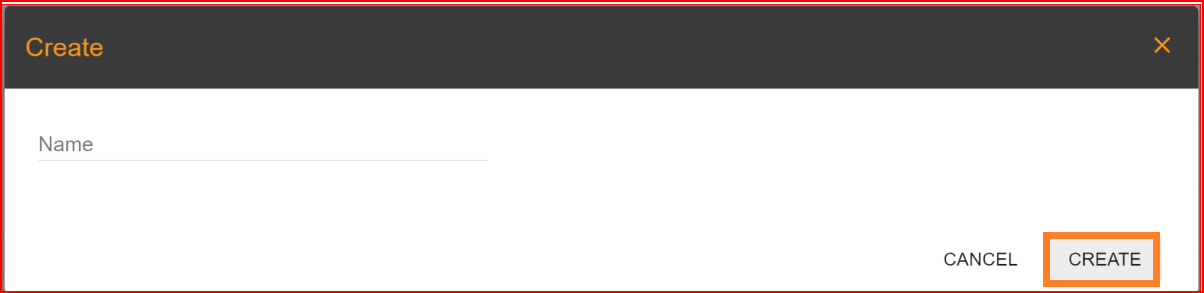
Enter the organization's name and click on the "Create" button. Your organization has been successfully added to the organization's list.
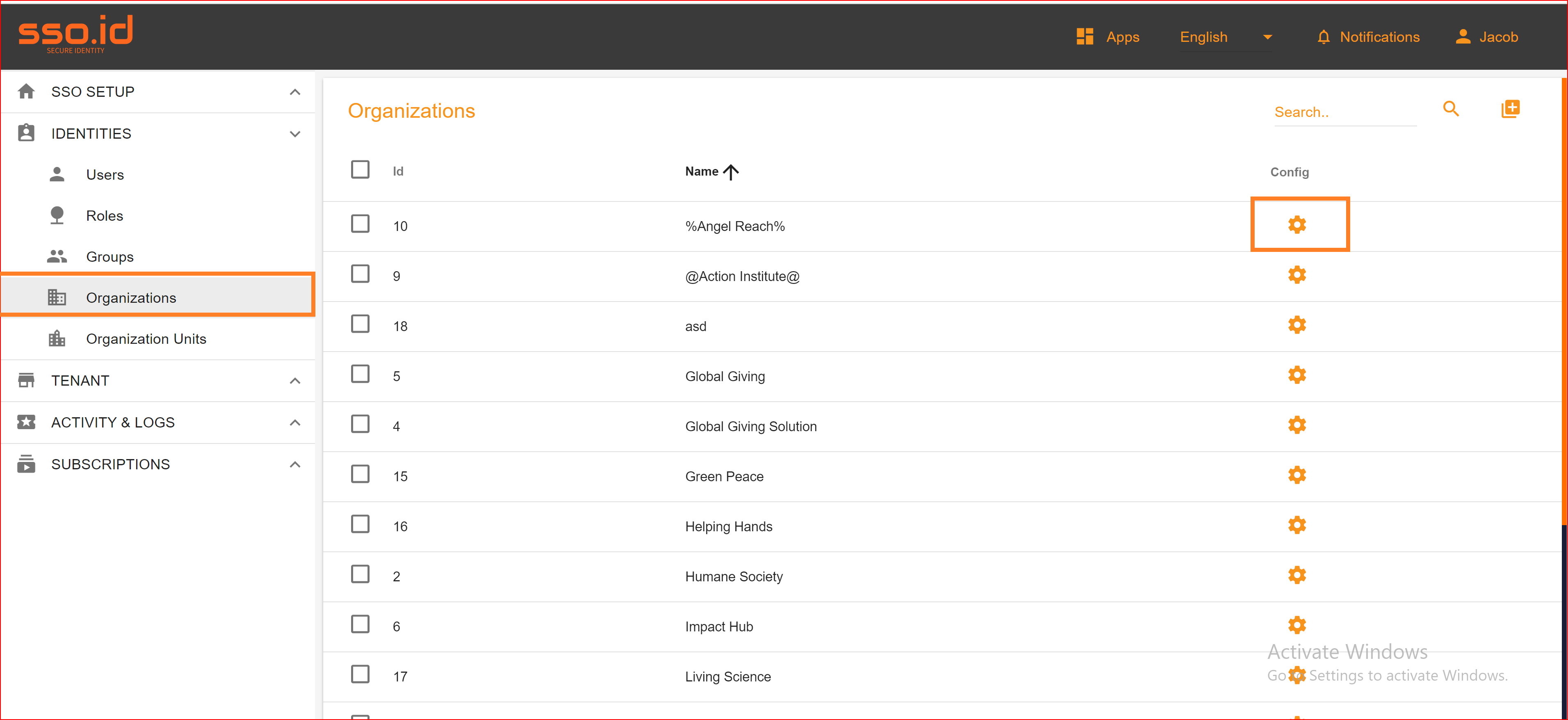
Config Setting
Once you've added your organization to the organization's list, open the organization configuration settings to configure some essential parameters.
Branding
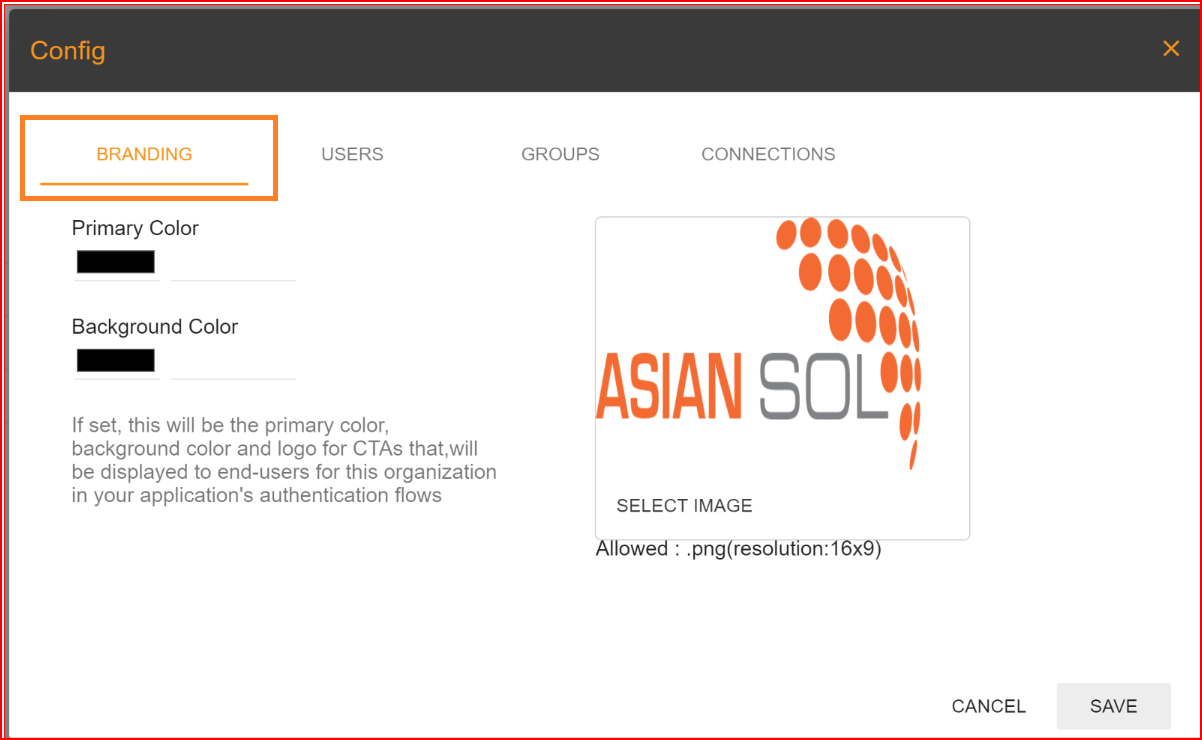
In the branding section, you will configure a logo for your created organization and select the primary and background colors. These choices will be displayed on your organization's interface.
Users
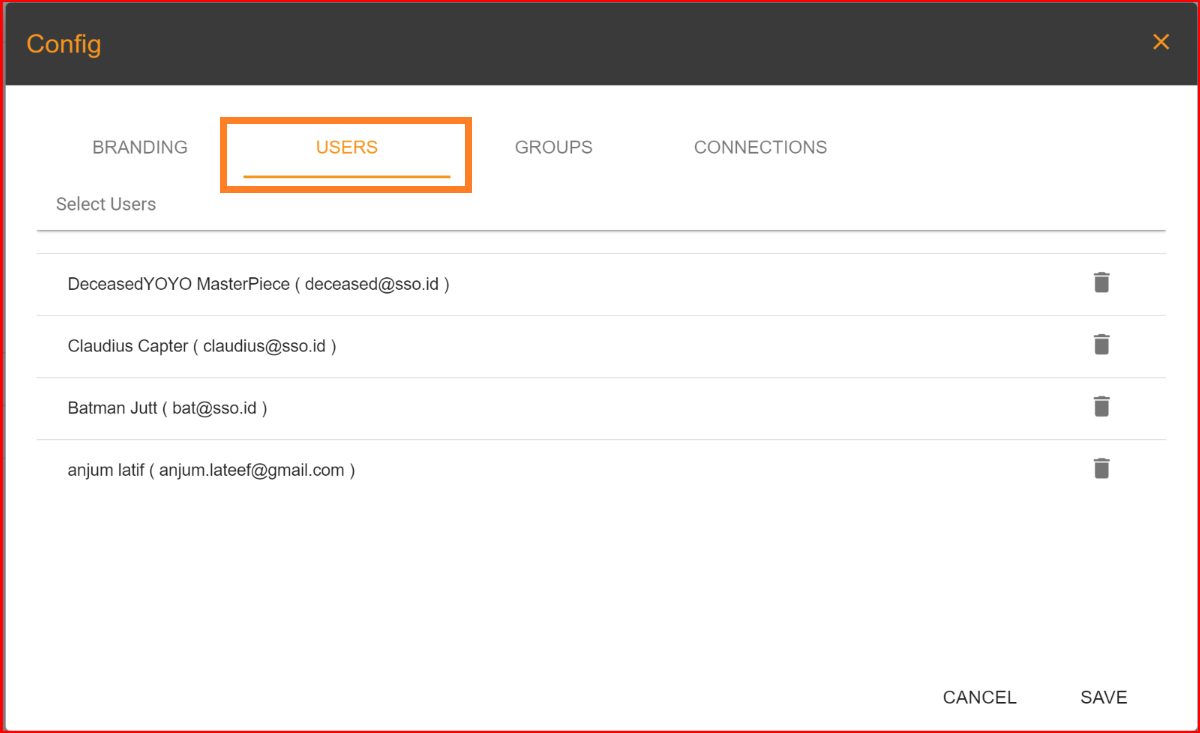
In the "Users" tab, you can grant access to your organization to specific users of your choice. Duplicate users are not permitted. You can also delete any users that have access to your organization in the users' section.
Groups
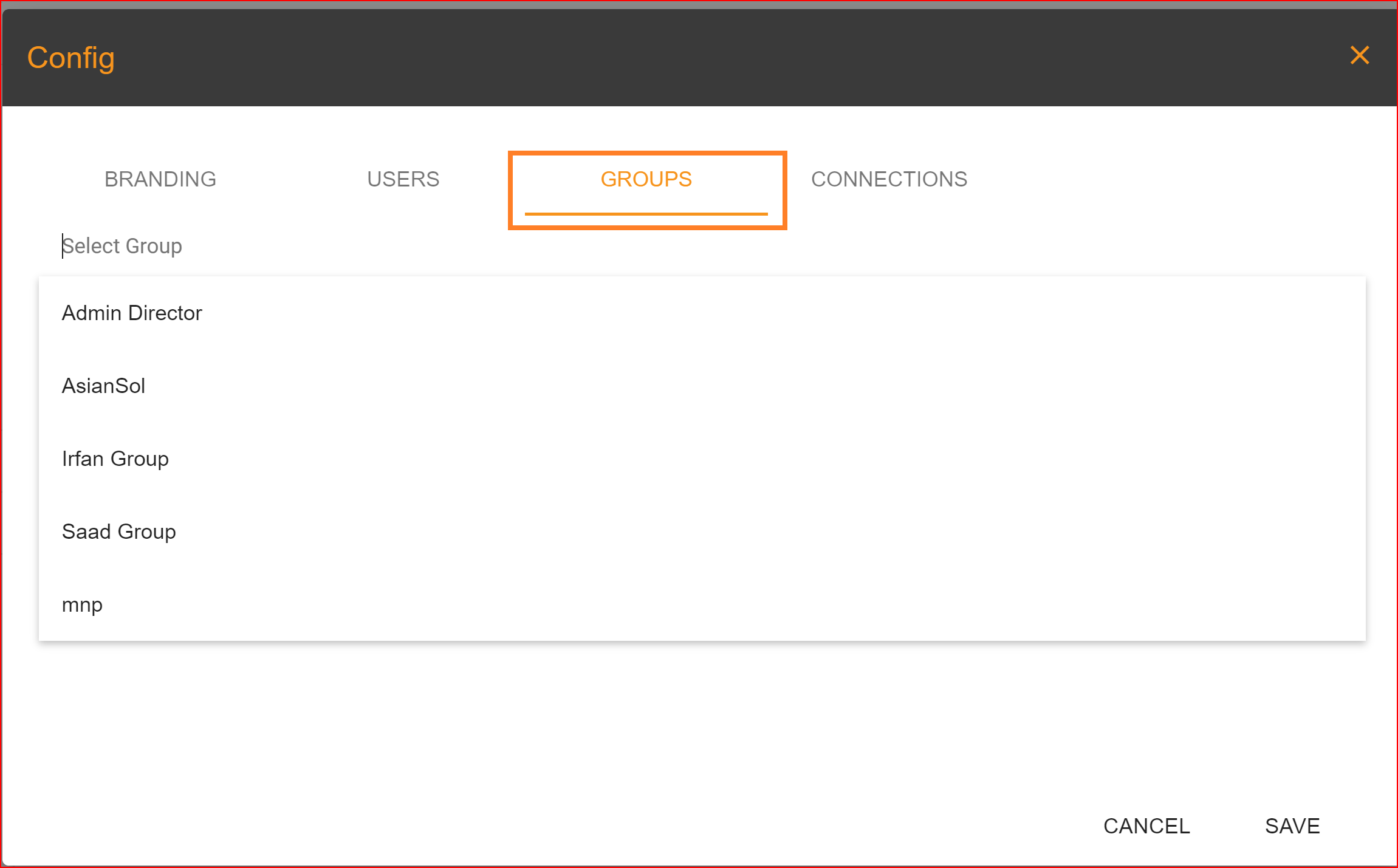
SSOID can be configured to work with user groups for better access control and permission management. The "Groups" tab allows you to easily create and add groups within any organization. Which groups would you like to add to your organization? You can select these groups from the drop-down menu.
Connections
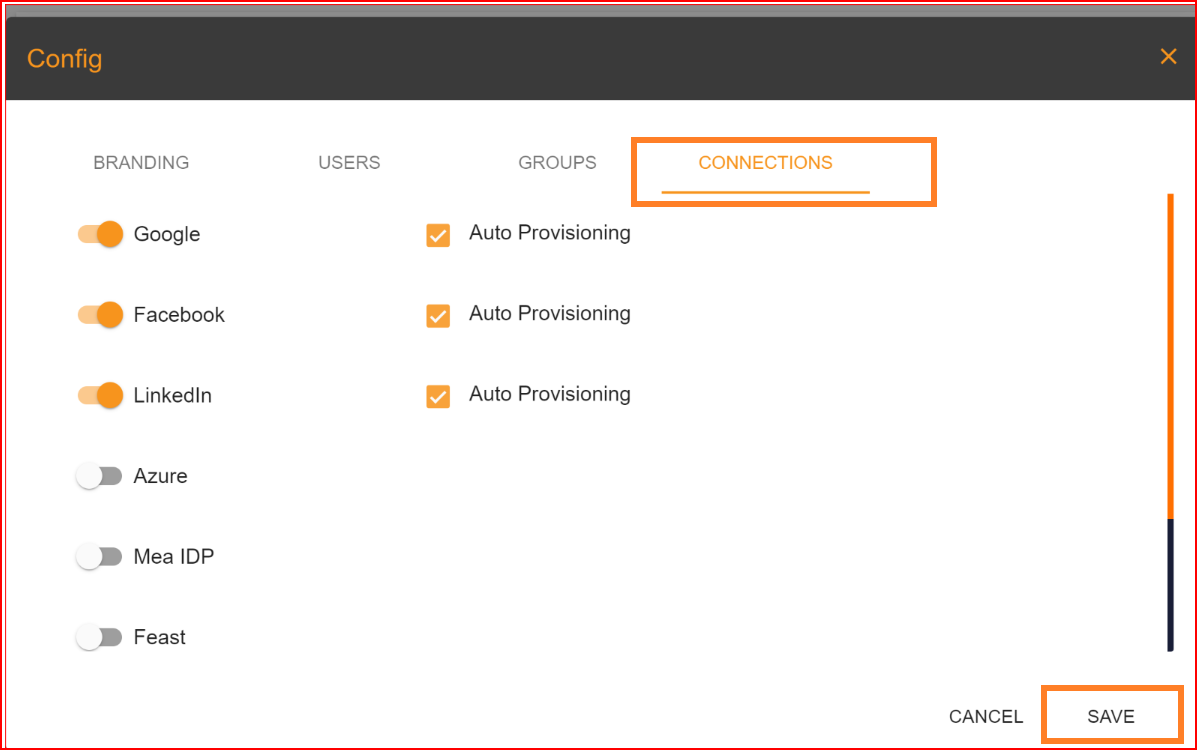
SSO.ID offers various connection options, such as Google, Facebook, LinkedIn, and more. We provide auto provisioning with each connection to enhance security and reliability. To enable a specific connection with auto provisioning, simply click the toggle button for that connection.
Auto-provisioning also known as automated provisioning or automated user provisioning, is a process within identity and access management (IAM) and user account management that automates the creation, modification, and deletion of user accounts and access privileges across various systems and applications within an organization. This process ensures that user access is consistent, secure, and efficient. Auto-provisioning can be a critical component of SSO.ID and identity management systems. In the process of adding an organization, make sure to complete all the required fields. We provide detailed explanations for each requirement to guide you through the entire process. Additionally, you have the option to update the name of any organization, and you can search for organizations in the organization section using the search bar. Deleting an organization is a straightforward process: simply select the checkbox next to the organization you want to remove and click the delete button. The deletion process will be completed, and your organization will be permanently removed.
GET Organizations API Endpoint
Retrieve organizations and tenant membership details via Core API:
GET: https://api.sso.id/api/organization
Headers
Authorization: Bearer {{access_token}}