Introduction
In SSO.ID v2, Multi-Factor Authentication (MFA / 2FA) adds defense-in-depth protection to user accounts across all applications. MFA policies can be enforced at the Tenant Level (protecting all organization members) or per Application.
Supported v2 MFA Methods
- TOTP Authenticator Apps: Google Authenticator, Microsoft Authenticator, 1Password, Authy (RFC 6238 time-based one-time passwords with QR code enrollment).
- Email OTP: Instant 6-digit one-time passcodes delivered securely via your configured SMTP server.
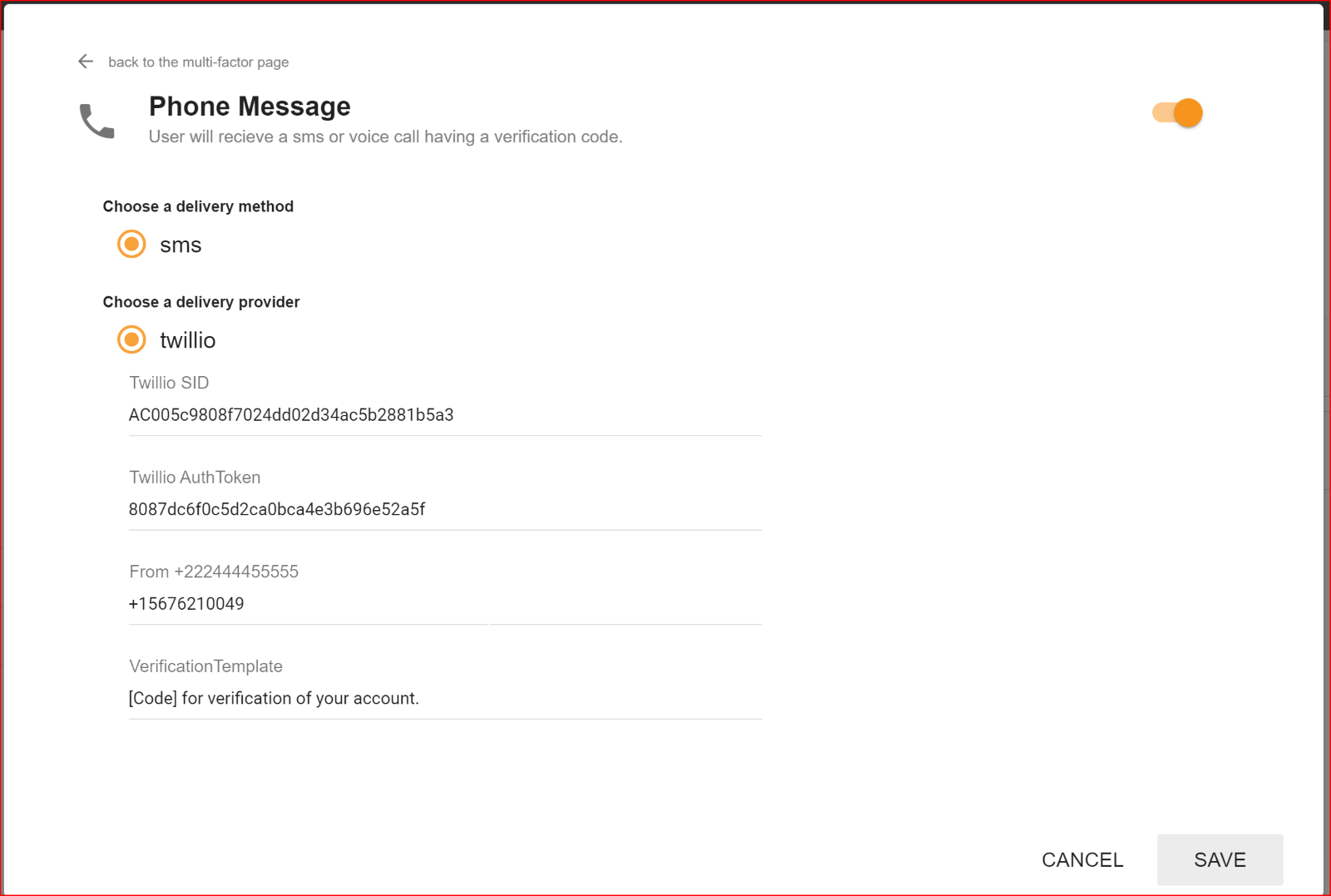
- Twilio SMS OTP: Direct SMS verification codes sent via Twilio REST API.
Tenant-Wide MFA Policy
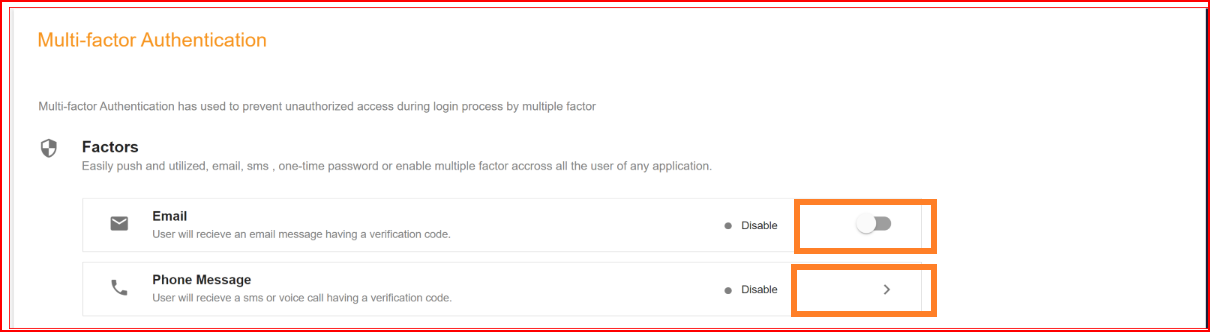
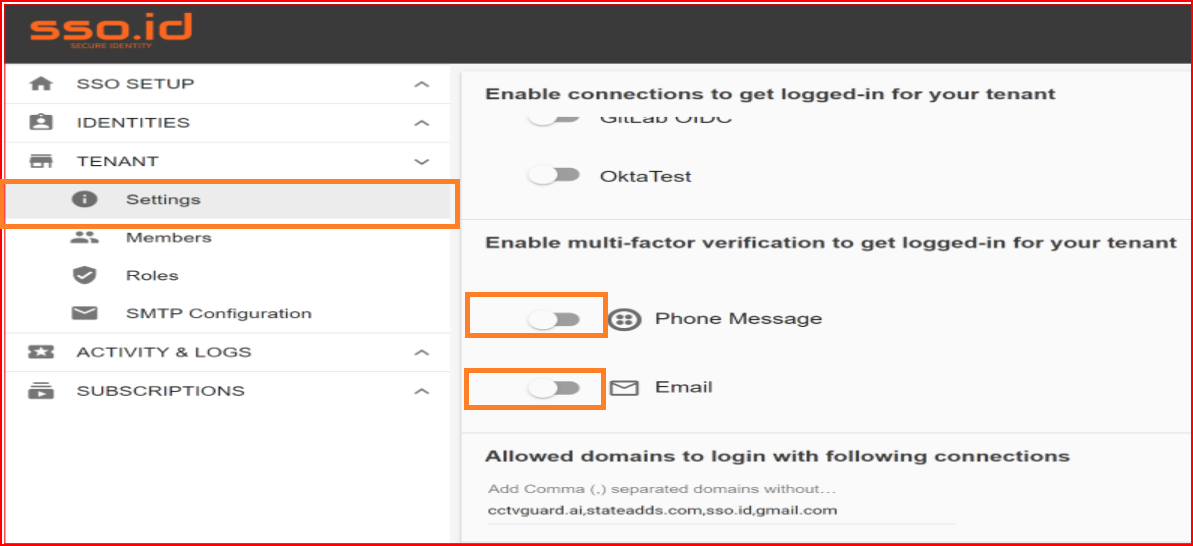
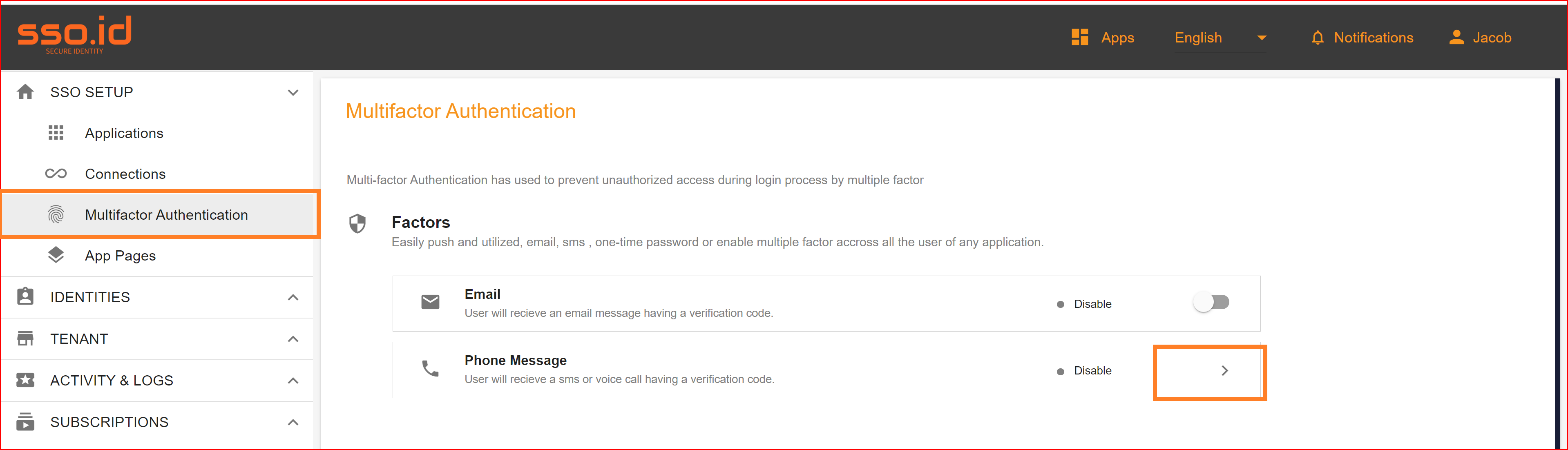
To enforce MFA for all users within your organization, navigate to Settings → Multi-Factor Authentication in your developer console. Toggle the required authentication factors and click Save.
Upon their next login at https://auth.sso.id/auth/Account/Login, users will be required to complete second-factor verification before accessing any application in the tenant.
Application-Specific MFA Configuration
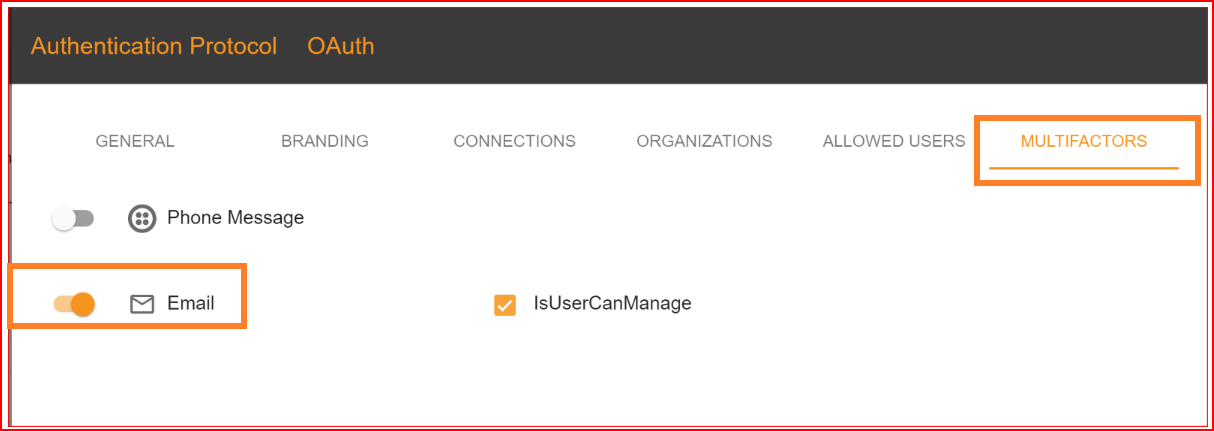
You can also configure MFA requirements per application in Applications → Edit Application → Multi-Factor.
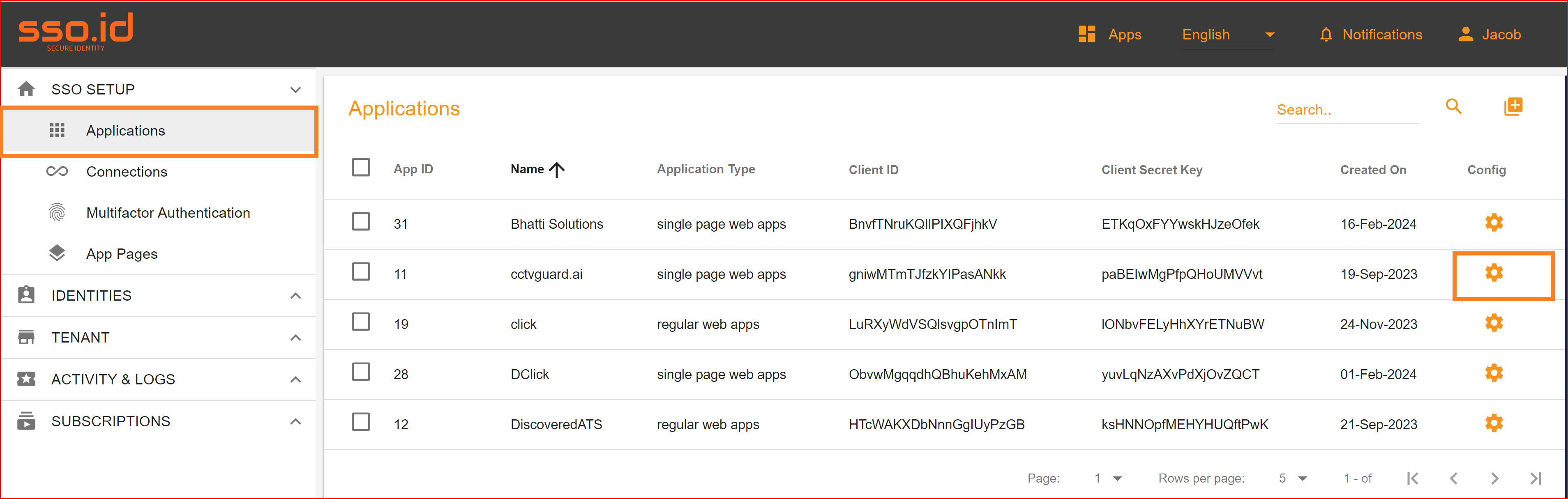
Enable the desired factor (Authenticator App, Email OTP, or SMS) and save your changes.
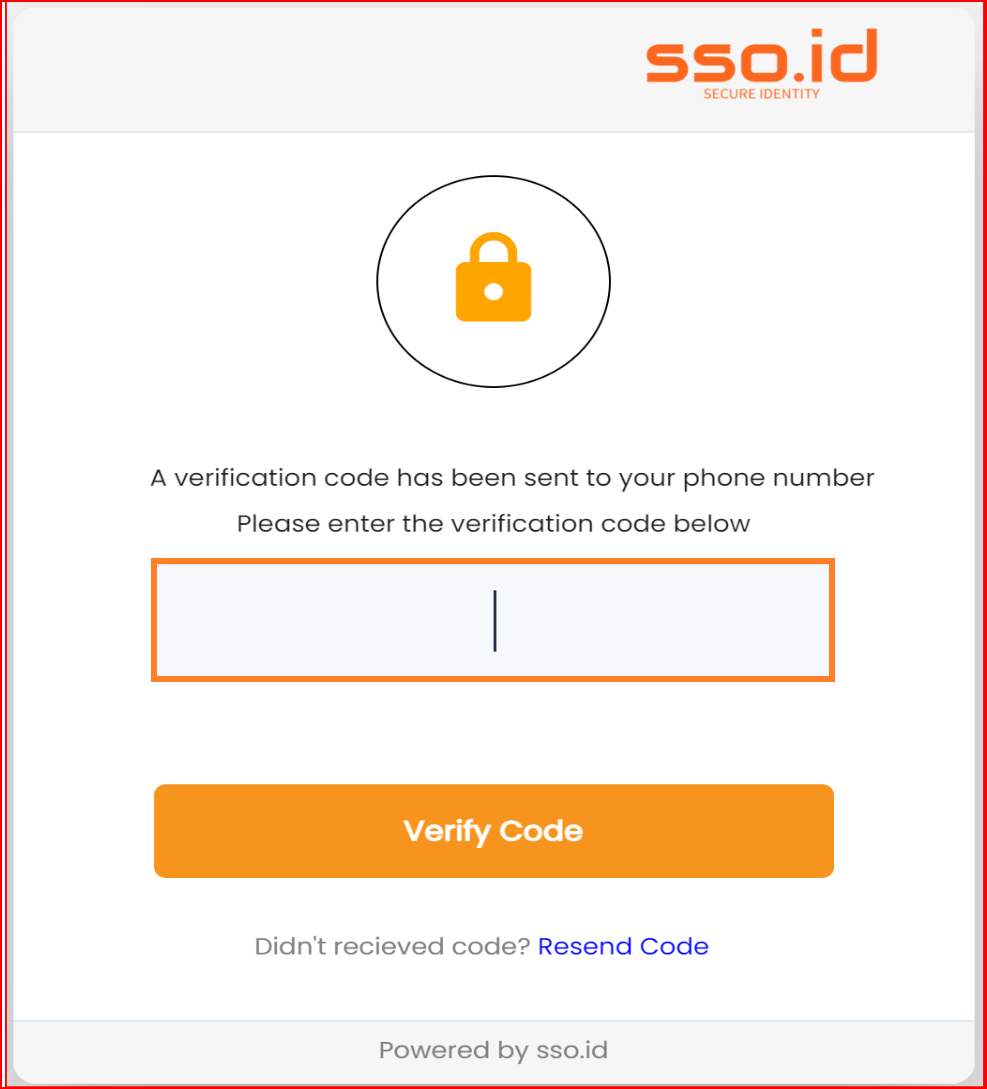
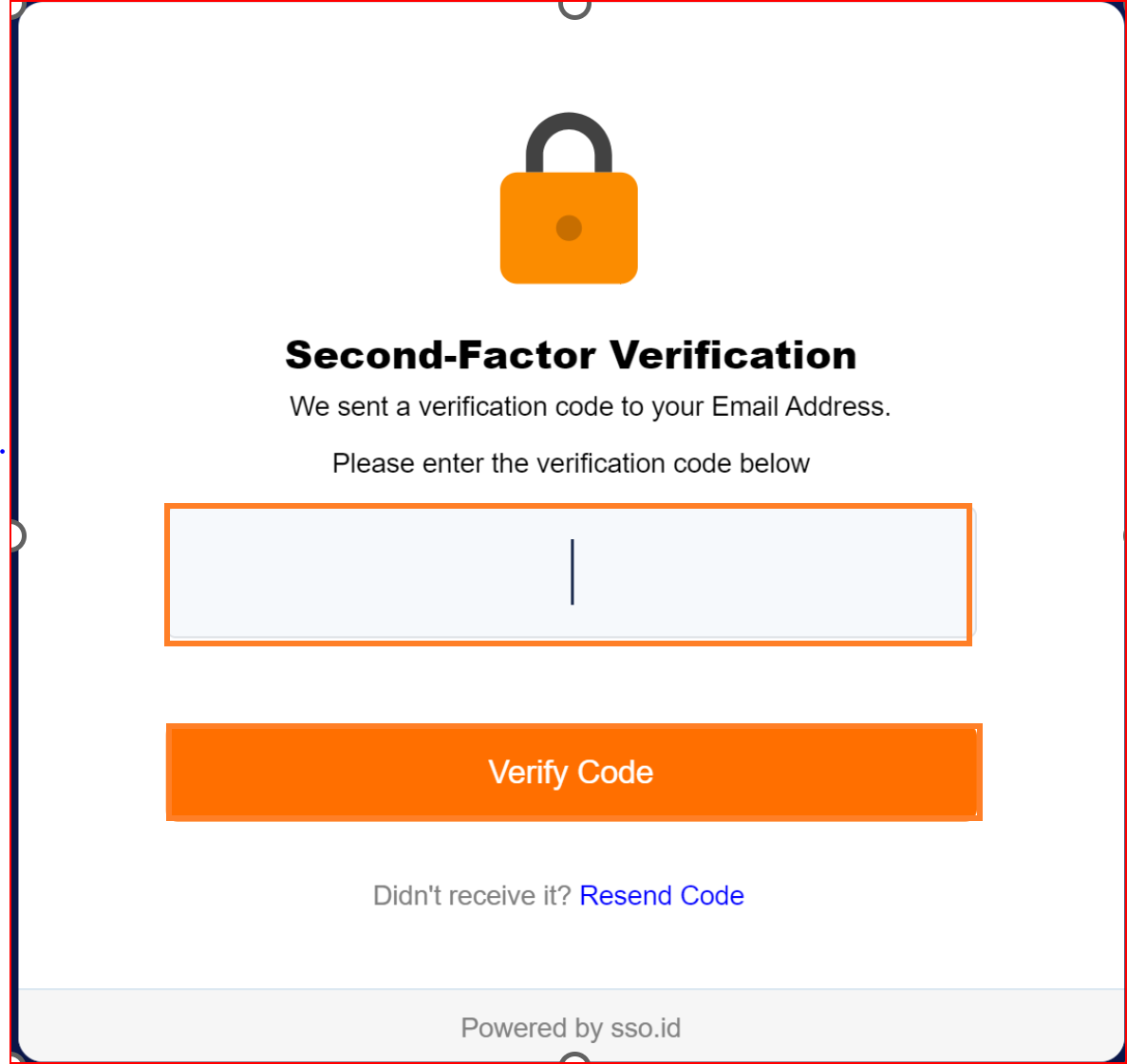
The next time you log in to your application and provide your email and password, we will send a code to either your email or a phone message for additional verification. If you enable email authentication, verification code will be sent to your valid email address. Please enter this verification code and click the verify code button.
Twilio SMS Provider Setup
To enable SMS-based 2FA, configure your Twilio credentials in the console:
- Twilio Account SID: Found in your Twilio Console dashboard.
- Twilio Auth Token: Your secret API authentication token.
- From Phone Number: Your verified Twilio SMS sender number.
- Verification Template: Customizable message body (e.g.
Your SSO.ID verification code is: {0}).