App Pages in SSO.ID
In SSO.ID v2, App Pages allow administrators to define dynamic navigation structures, permission-guarded routes, and menu items for client applications. Configure App Pages in the Angular Console at https://app.sso.id/admin/app-pages.
- Dropdown Menus
- Navigation Menus
- Context Menus
- Hamburger Menus
- Toolbar Menus
How you configure App Pages
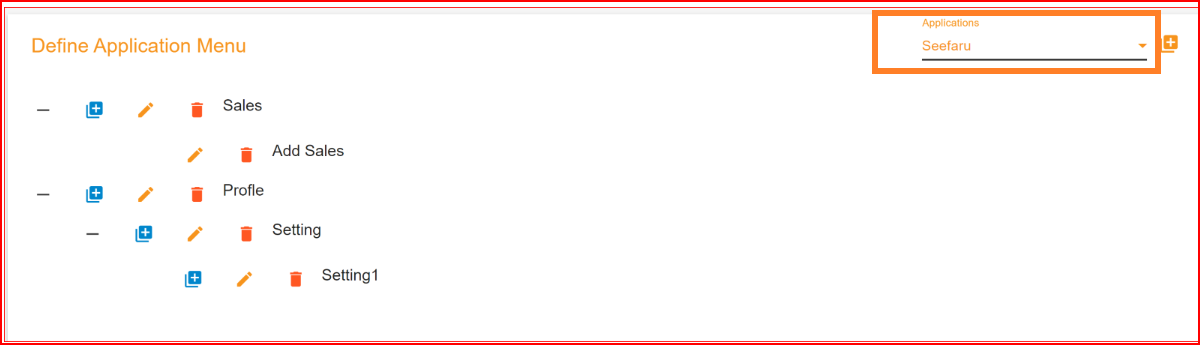
To define your application menu in SSO.ID's "App Pages," follow these steps: Select your desired application from the application list. Once you've made your selection, click on the "Add" button to include the application menu in the chosen list.
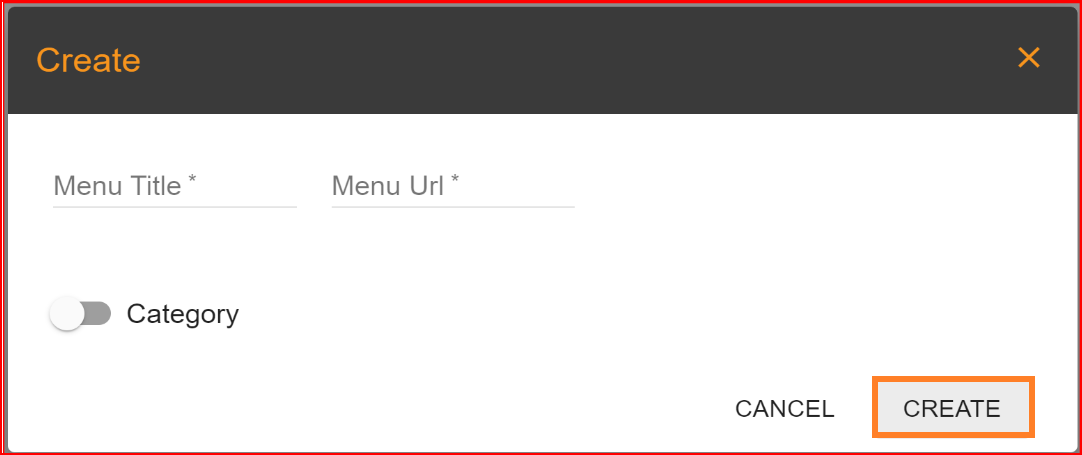
This action will open a creation dialog with two parameters and a toggle button.
- Menu Title: Please enter your application menu title in this field.
- Menu URL: Supply the full menu URL for your application menu.
- Toggle Button: The third parameter is a toggle button labeled "Category Title." If you wish to include subtitles for any menu title, you should activate this toggle button. Once activated, a "Create" button will appear alongside the menu title, allowing you to add additional subtitles to that menu title.
To complete the entire process, click on the "Create" button, and your application menu will be successfully created in the app pages.
Update Menu
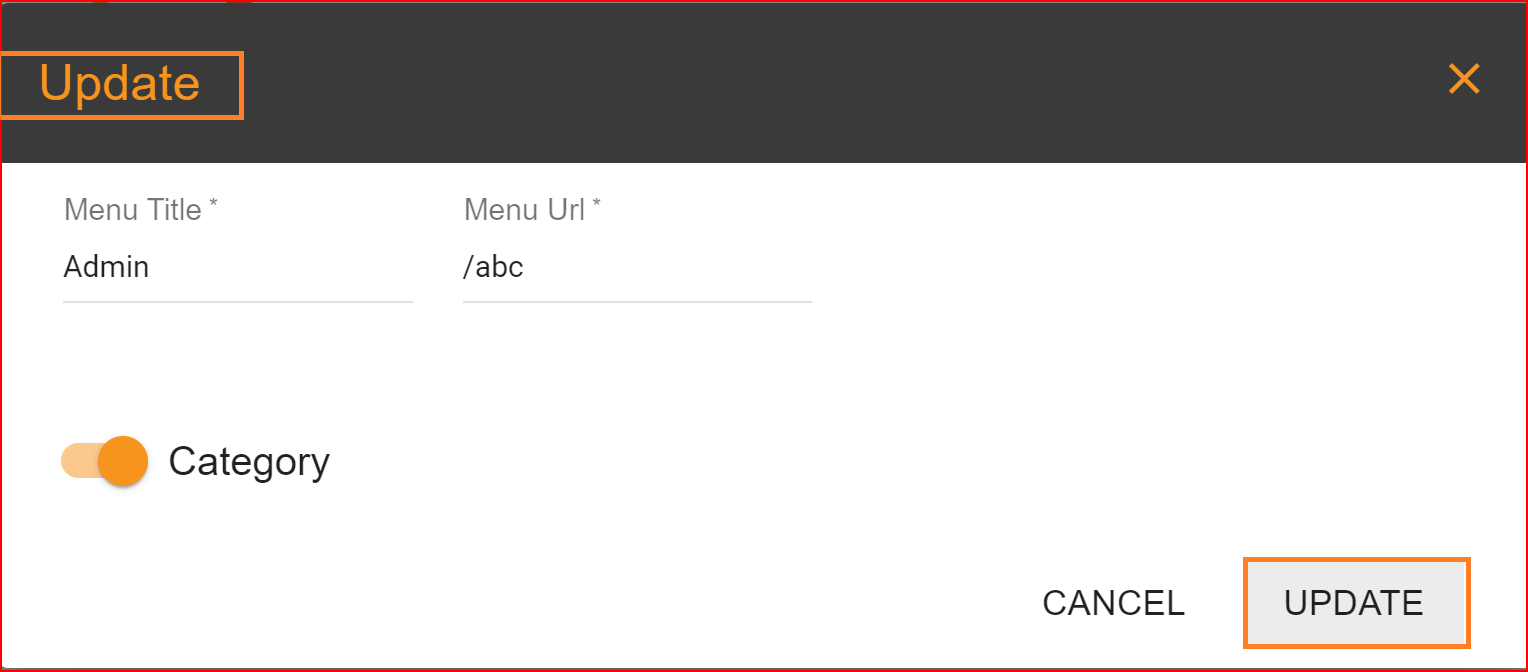
SSO.ID offers an update option for every menu and sub-menu. You can effortlessly update any menu or sub-menu by simply clicking on the "Update" button.
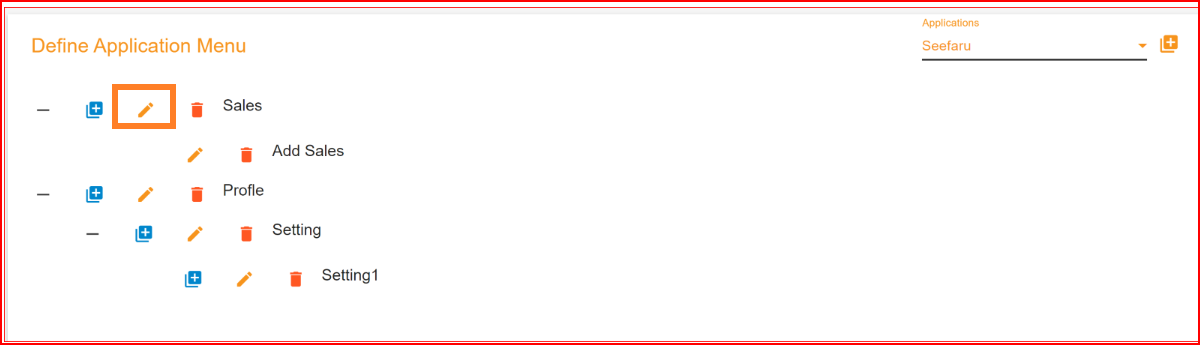
Once you've updated the menu or sub-menu title, you can save the changes by clicking the "Update" button again. This will successfully update the record. You can also switch between subtitle-to-title and title-to-subtitle in the update process, allowing for flexible adjustments to your menu structure.
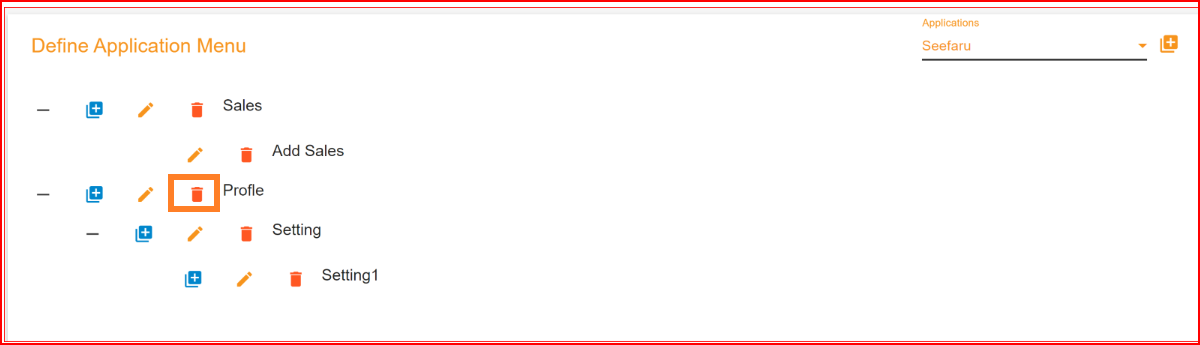
Delete Menu
SSO.ID offers a delete button for every menu title and subtitle, making the deletion process exceptionally straightforward in the system. With just one click on the delete button of your choice, the menu title and subtitle will be permanently removed from the system.